.png)
 3 days ago
7
3 days ago
7
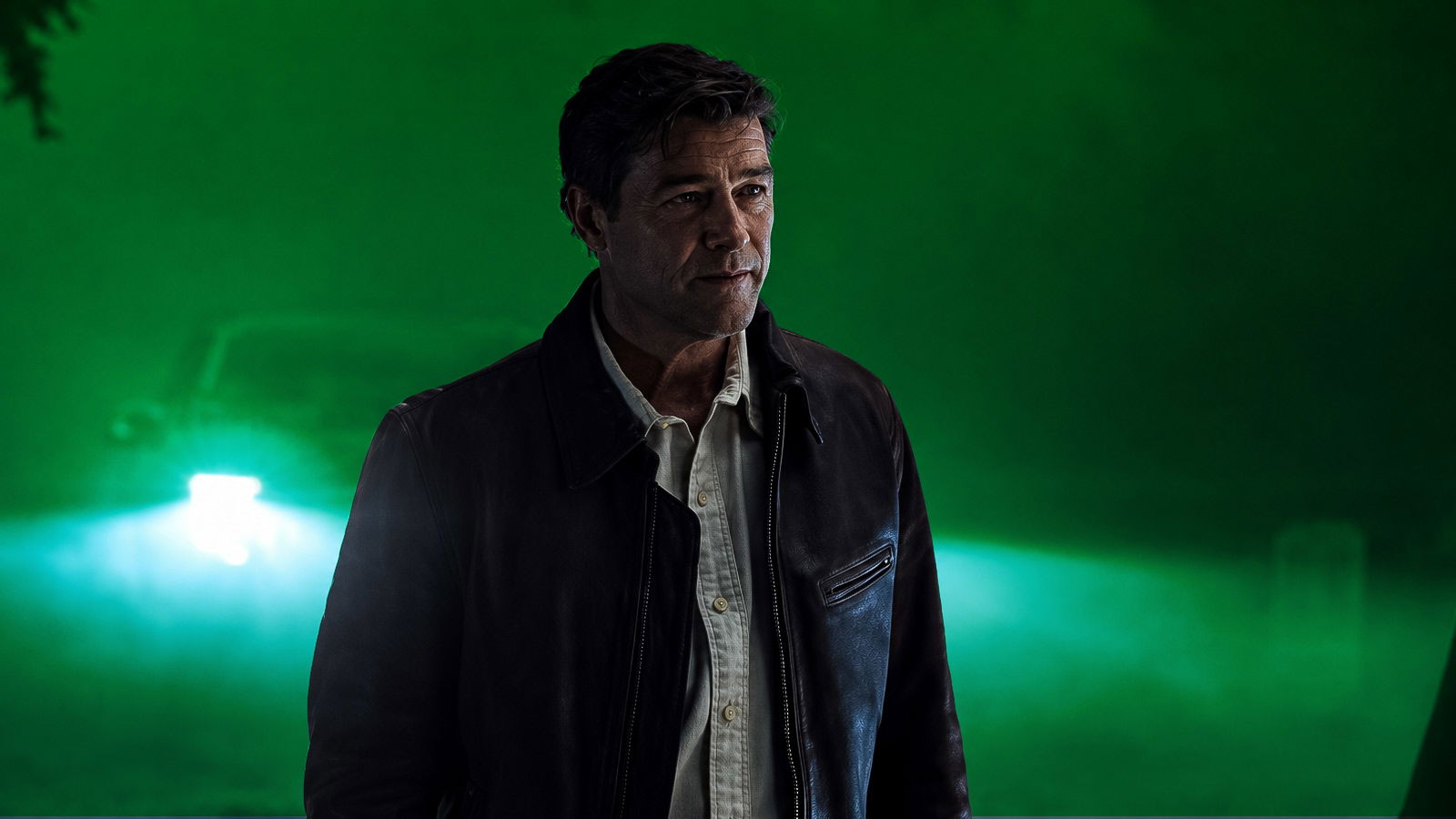
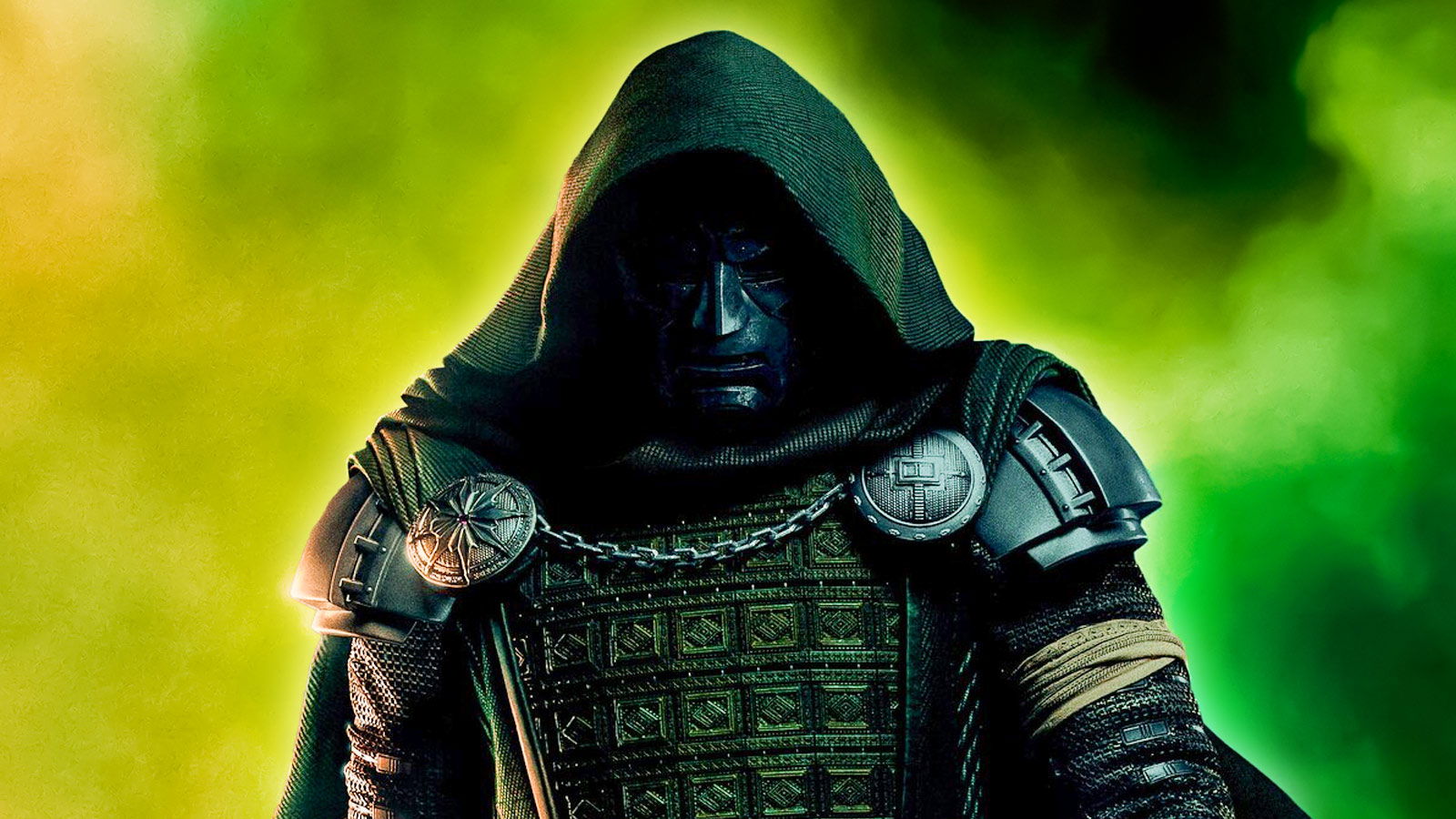
Control Resonant comes out today, and the sequel is one of the biggest releases of the year. But one thing you need to know going in is that the game is quite demanding on PC. Remedy Entertainment‘s Northlight Engine brings us an expansive, interconnected world, dynamic destruction, advanced lighting, and demanding ray-tracing features.
Manhattan has never faced a crisis like this. Only Dylan Faden can stop this paranatural geophysical nightmare.
CONTROL Resonant arrives September 24th 2026 to PlayStation 5, Xbox Series X|S, PC via Steam and Epic Games Store. Pre-order now!#CONTROLResonant pic.twitter.com/vZY94sd1lt
Fortunately, you don’t need to sacrifice too much visual quality to achieve a significantly higher frame rate. And if you’re looking for more FPS, you’ll want these settings for the best performance while keeping the game looking sharp. While you’re at it, make sure to get all the achievements!
Use These Display Settings for Maximum FPS in Control Resonant
-

Image Credit: Remedy Entertainment
-
Image Credit: Remedy Entertainment
-
Image Credit: Remedy Entertainment
-
Image Credit: Remedy Entertainment
-
Image Credit: Remedy Entertainment


Start by matching your output resolution to your monitor, then let an upscaler handle the internal rendering resolution. DLSS is the preferred option on supported NVIDIA GPUs, while Radeon and Intel cards should use FSR.
For 1080p and 1440p, Quality upscaling is a good starting point. At 4K, you might have to use Balanced or Performance for a better frame-rate improvement. Don’t go down to low internal resolutions at 1080p, as the resulting image can become noticeably soft.
Keep VSync off if you use FreeSync or G-SYNC, and consider enabling the game’s frame-rate limiter with a target that your PC can maintain consistently. On a 144Hz VRR monitor, for example, you can put the limit around 141 FPS if your hardware can actually reach it.
For graphics, use the High preset as your starting point, instead of directly going to Ultra. Lower Shadow Quality, Fog, Volumetric Spotlights, and Foliage to Medium if additional performance is needed. Texture quality can generally remain High on GPUs with sufficient VRAM, since reducing textures primarily helps when the graphics card is running short of memory.
For the cleanest image, turn Motion Blur, Film Grain, Lens Distortion, and Vignetting off. These effects have relatively small performance costs, but you’ll get a much sharper image during combat.
Turn Off Ray Tracing for Better Performance
 There are a lot of settings to get good FPS in this game. | Image Credit: Remedy Entertainment
The biggest place you can get more FPS is from the ray-tracing and path-tracing settings. If you’re struggling to get your target FPS, disable Ray Tracing before changing other graphics settings.
At 1440p, going from RT Off to RT Ultra can reduce performance by a lot. On the other hand, changing other graphics settings has a comparatively smaller impact. Path-traced indirect lighting is even more demanding and should generally be reserved for high-end hardware.
For the best FPS, use:
- Ray Tracing Preset: Off
- Indirect Lighting: High
- Shadows: Medium
- Fog: Medium
- Volumetric Spotlights: Medium
- Global Reflections: High
- Screen Space Reflections: High
- Textures: High
- Texture Filtering: High
- Foliage: Medium
- Motion Blur: Off
- Film Grain: Off
- Lens Distortion: Off
- Depth of Field: Off or personal preference
If performance is still below your target, lower the upscaling quality or render resolution before reducing textures.
Finally, Frame Generation isn’t as good as upscaled or native output. It’s better to only use it if you already have decent frame rates, ideally around 50–60 FPS or higher. If you have that much, then enable frame generation if you want smoother output on a high-refresh display.
Will you be playing Control Resonant at launch today? Let us know in the comments!























 Bengali (BD) ·
  English (US) ·