.png)
 2 weeks ago
16
2 weeks ago
16
 Credit: Riot Games
Valorant is one of those highly competitive shooters where every single millisecond matters. Stuttering or delay could be the difference between winning a clutch and losing the game!
Riot Games has built Valorant to be highly accessible for most systems. But you need to ensure that you have the absolute best PC settings to maximize your FPS and minimize your input lag.
Follow along this guide, and your next Valorant outing will have a monumental difference!
Best Valorant Video and Graphics Settings for PC
Credit: Riot Games
⛶
Credit: Riot Games
⛶
Credit: Riot Games
⛶
×
Credit: Riot Games
Credit: Riot Games
Credit: Riot Games
Keep in mind that you need to get the most out of your hardware to achieve the fluidity you’re looking for. In order to achieve that, you should focus on lowering unnecessary visual clutter while prioritizing features that directly impact performance!
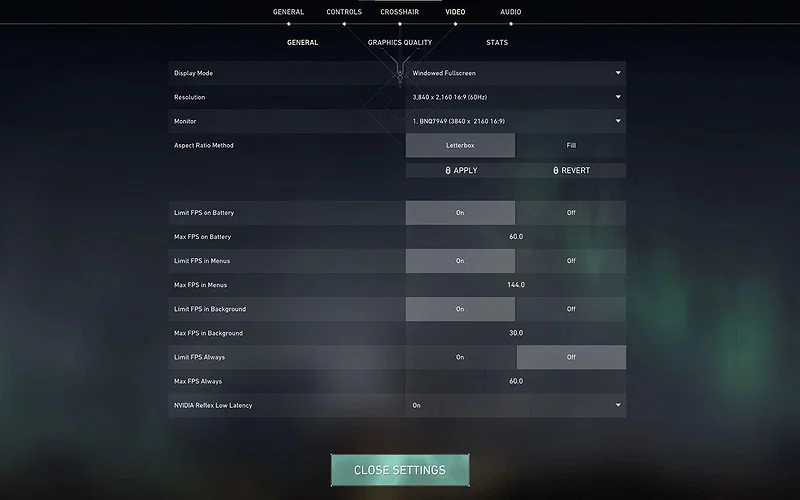
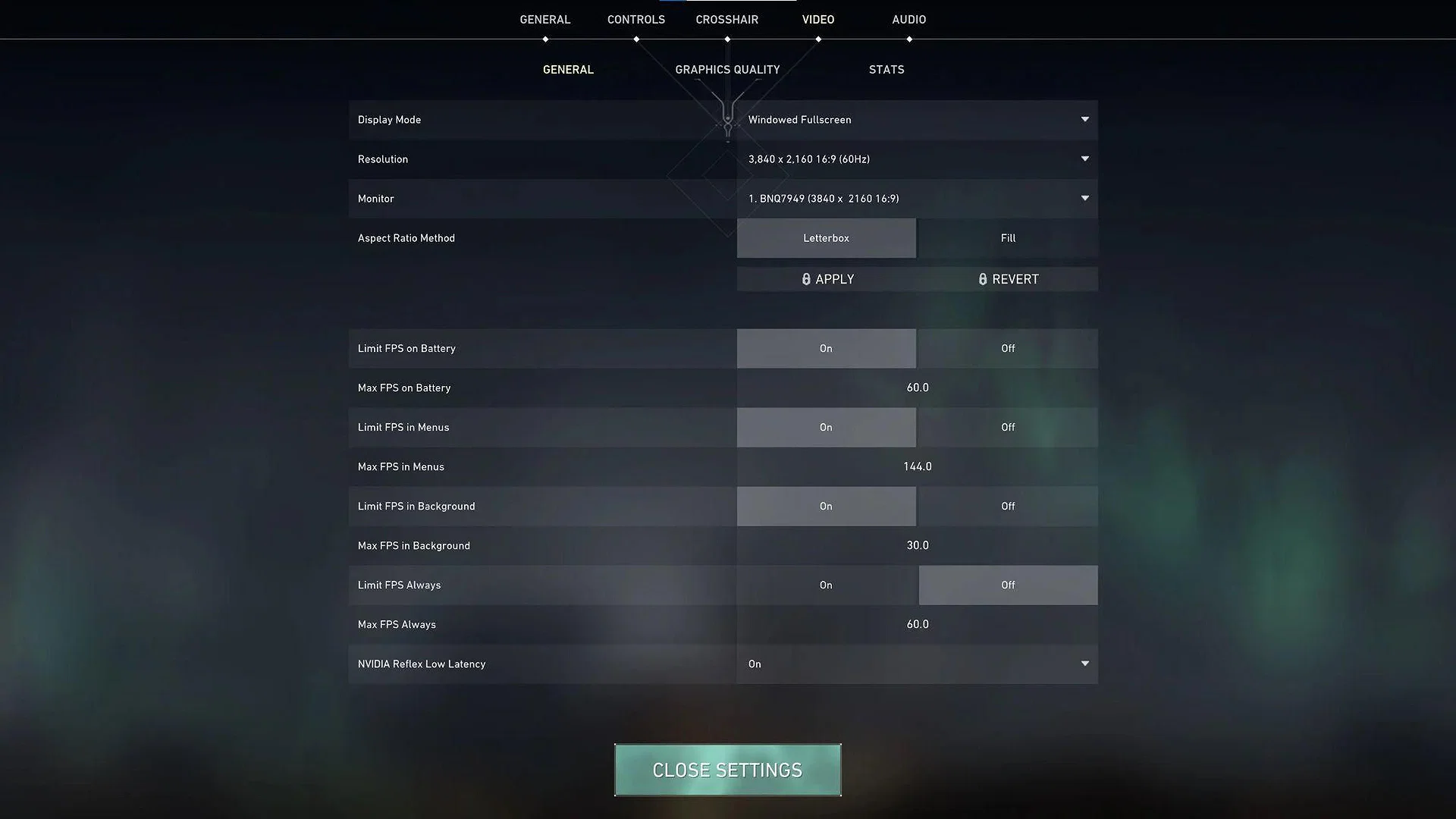
General / Display Settings
| Display Mode | Fullscreen |
| Resolution | Native Monitor Resolution (e.g., 1920×1080) |
| Aspect Ratio Method | Letterbox |
| Limit FPS Always | Off (Unless experiencing severe screen tearing) |
| NVIDIA Reflex Low Latency | On + Boost |
These settings control how the game interacts with your monitor. Running the game in Fullscreen is mandatory to prevent Windows from interfering with or adding to the input delay.
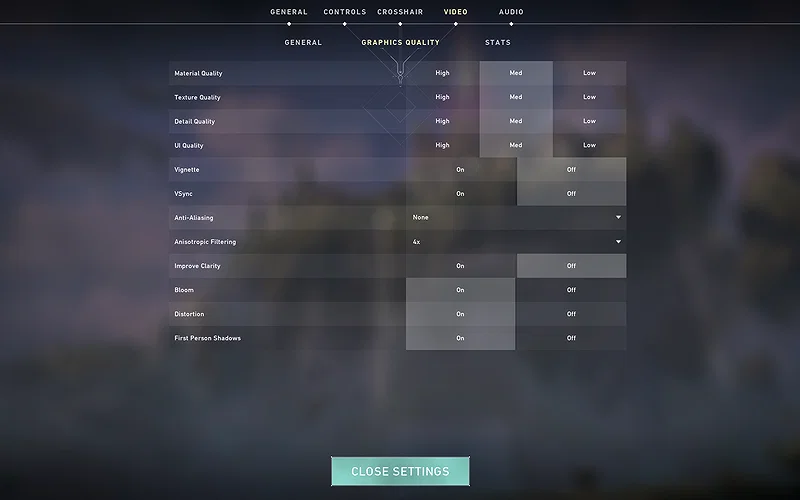
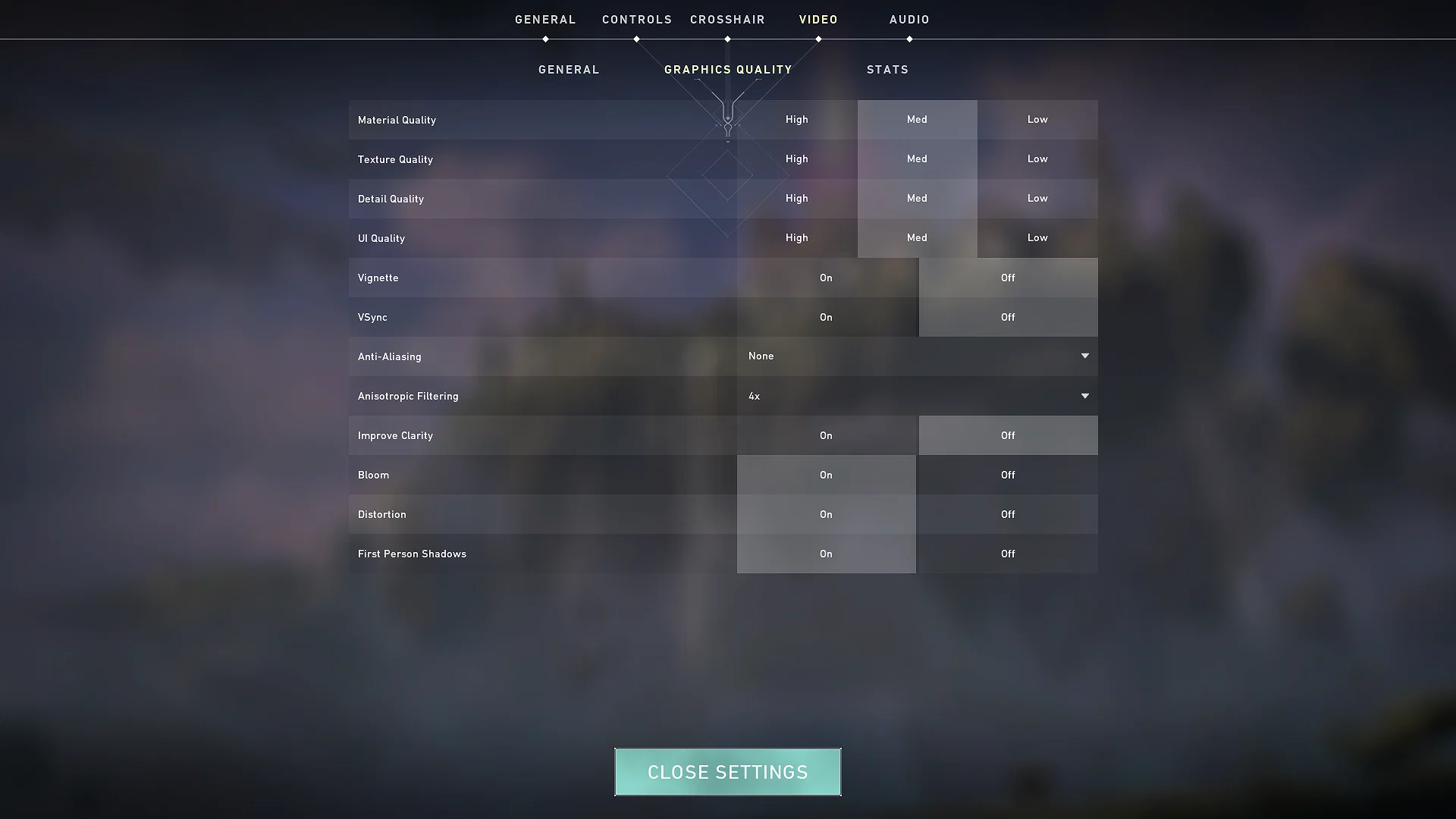
Graphics Quality
| Multithreaded Rendering | On |
| Material Quality | Low |
| Texture Quality | Low |
| Detail Quality | Low |
| UI Quality | Low |
| Vignette | Off |
| VSync | Off |
| Anti-Aliasing | None or MSAA 2x |
| Anisotropic Filtering | 2x or 4x |
| Improve Clarity | On |
| Bloom | Off |
| Distortion | Off |
| Cast Shadows | Off (Turn On only if using enemy shadows for intel) |
This is where you will gain most of the FPS. The single most important setting here is Multithreaded Rendering. It will spread the workload across your CPU cores when turned on.
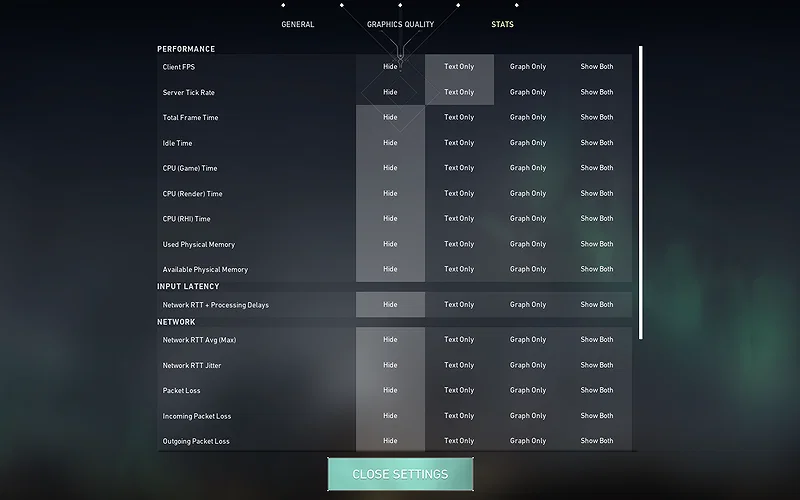
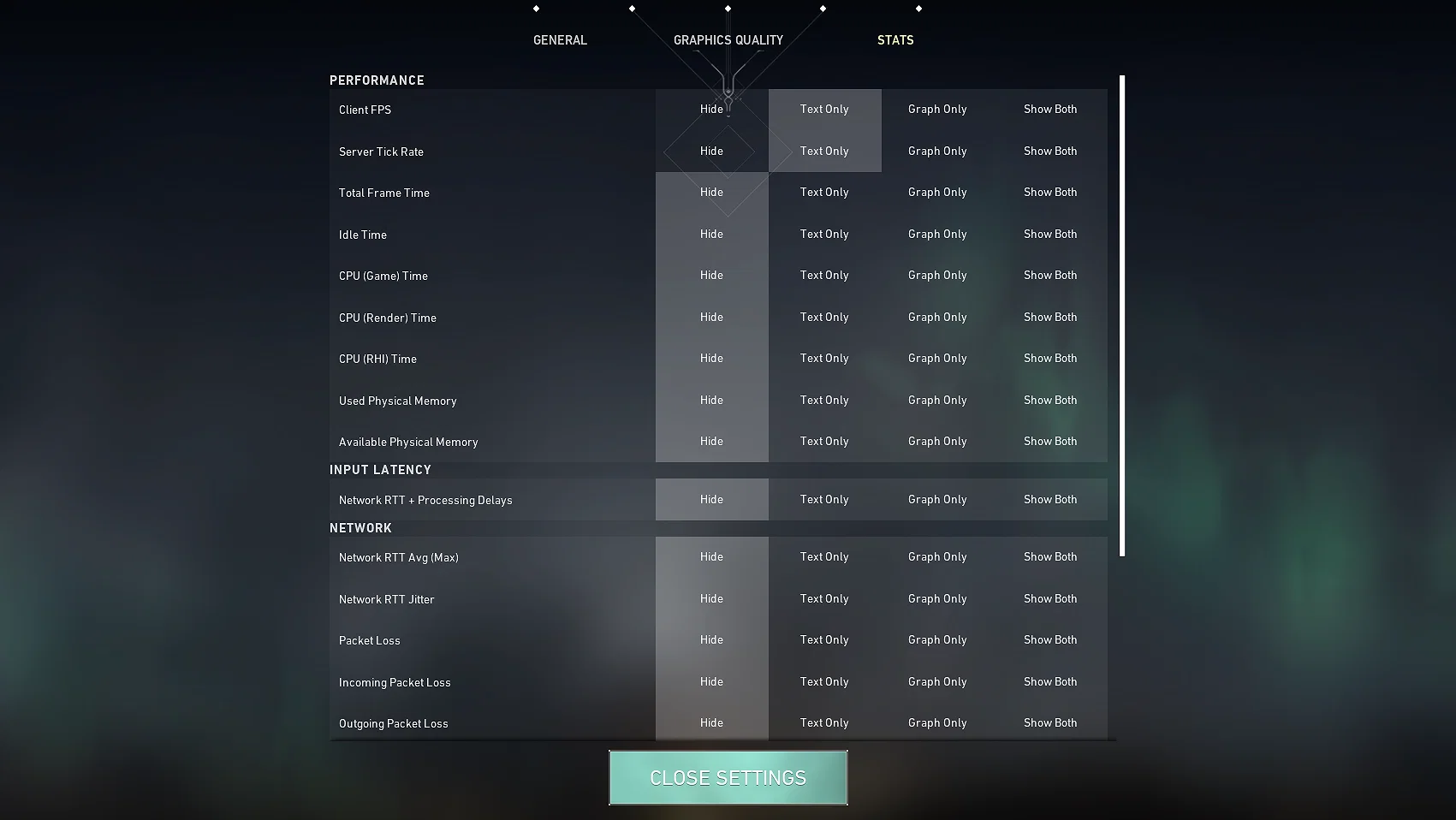
Stats / Advanced Settings
| Client FPS | Text Only |
| Server Tick Rate | Text Only |
| Network Round Trip Time | Text Only |
| Packet Loss | Text Only |
Monitoring your performance metrics is vital. Either for diagnosing connection or hardware input lags mid-game. However, keep these on text-only so they do not clutter your screen with distracting graphs. All other settings under this section can be set to Hide.
Windows Optimizations That Can Further Improve Performance
 Take your game to the next level | Credit: Riot Games
Even with the best in-game settings, Windows can steal frames and add frustrating latency to Valorant. To squeeze out every last drop of performance, you need to configure your OS to prioritize Valorant over anything else.
- Search Game Mode in the Start menu and make sure it’s enabled. This prevents background updates and allocates more resources to your game.
- Similarly, search for Xbox Game Bar and disable it. This Windows setting is known to eat up your 200-400MB of RAM (via IQON Digital).
- Navigate to your Windows Security settings and disable Memory Integrity (VBS). It is another silent performance eater in Windows 11 and should be turned off. Fortunately, it’s not an essential setting for Valorant’s anti-cheat systems.
- Finally, turn on Hardware-Accelerated GPU Scheduling (HAGS) in your Windows Graphics Settings. This will drastically lower your latency when playing Valorant.
Going through with each recommendation here is a sure-fire way to boost your FPS. Investing a few minutes in tweaking these settings will pay dividends in Season 2026 and onwards.
Which of these settings have you previously used in Valorant? Which ones do you plan to utilize before your next session? Let us know in the comments.























 Bengali (BD) ·
  English (US) ·