.png)
 1 hour ago
7
1 hour ago
7
You can master your iPhone with these eight easy tips
Published May 09, 2026 • Last updated 6 minutes ago • 5 minute read

Whether you’re a seasoned user or brand new to the iPhone – Canada’s most popular smartphone (at about 65% market share) – chances are you’re not using your device to its fullest.
Advertisement 2

THIS CONTENT IS RESERVED FOR SUBSCRIBERS ONLY
Subscribe now to read the latest news in your city and across Canada.
- Unlimited online access to articles from across Canada with one account.
- Get exclusive access to the Toronto Sun ePaper, an electronic replica of the print edition that you can share, download and comment on.
- Enjoy insights and behind-the-scenes analysis from our award-winning journalists.
- Support local journalists and the next generation of journalists.
- Daily puzzles including the New York Times Crossword.
SUBSCRIBE TO UNLOCK MORE ARTICLES
Subscribe now to read the latest news in your city and across Canada.
- Unlimited online access to articles from across Canada with one account.
- Get exclusive access to the Toronto Sun ePaper, an electronic replica of the print edition that you can share, download and comment on.
- Enjoy insights and behind-the-scenes analysis from our award-winning journalists.
- Support local journalists and the next generation of journalists.
- Daily puzzles including the New York Times Crossword.
REGISTER / SIGN IN TO UNLOCK MORE ARTICLES
Create an account or sign in to continue with your reading experience.
- Access articles from across Canada with one account.
- Share your thoughts and join the conversation in the comments.
- Enjoy additional articles per month.
- Get email updates from your favourite authors.
THIS ARTICLE IS FREE TO READ REGISTER TO UNLOCK.
Create an account or sign in to continue with your reading experience.
- Access articles from across Canada with one account
- Share your thoughts and join the conversation in the comments
- Enjoy additional articles per month
- Get email updates from your favourite authors
Article content
We tend to stick with what we know and don’t venture out of our comfort zone.
Article content
Article content
That is, until someone shows you a few impressive “shut the front door!” tips and tricks.
And so, take heed to these following (and lesser known) features embedded in your iPhone – to help save you time, money and aggravation. Some are new and others have been around for a while (but worth calling out if you haven’t tried them yet).
Most of these tips will work with all iPhone models and even older ones, but make sure you have the latest iOS 26 operating system installed (Settings > General > Software Update).

Add backgrounds to your messages
You can now add a custom vibe to your iMessage chats with friends and family.
In iOS 26, you can set a custom conversation background in Messages by simply opening the chat and tapping on the name of the person you’re interacting with. If they’re on iPhone, you’ll see the word “Backgrounds” as one of the options.
Pick a colour, gradient, photo, animated background, or generate one with Apple’s Image Playground.
By signing up you consent to receive the above newsletter from Postmedia Network Inc.
Article content
Advertisement 3
Article content
Create a custom ringtone for free
Gone are the days of paying for ringtones or needing an app like GarageBand to create one.
With iOS 26, the process is now as simple as a few taps directly from your files. Whether it’s a snippet from your favourite new song or a custom recording, open the Files app and locate any MP3 or M4A file you have (ensure it is under 30 seconds long).
Alternatively, open a recording from your Voice Memos app.
Now, tap the Share button (which looks like a box with an arrow coming out of it) and select the option “Use as Ringtone.” That’s it. Now, you can make it your default ringtone for all callers or assign it to a specific contact.
Just go to Settings > Sounds & Haptics > Ringtone.
RECOMMENDED VIDEO

We apologize, but this video has failed to load.
Turn any book into an audiobook
I’ve written about this one before, but it really is a game changer.
Instead of you reading a book, why not have a book read to you?
And no, you don’t need to pay for audiobooks.
This is ideal for when closing your eyes in bed or on an airplane, walking around on a spring day, or for anyone with vision impairment, of course.
Advertisement 4
Article content
In fact, it’s an accessibility feature called “Speak Screen.”
To get going, go to Settings > Accessibility > Read & Speak > Speak Screen. Ensure it’s toggled to green. You only need to enable this once.
After you do, simply swipe down from the top of the screen with two fingers, on any page, and the onscreen text will be read to you. It could be a book (in any app), an article on the web, an email, text messages, notes, and more.
You can also skip forward and back between blocks of text, slow down or speed up the reading, and more.

Edit, Unsend messages
We’ve all had that “uh oh” moment. If you sent a message but realized it needs to be edited or deleted, there is hope!
Press and hold over that sent message and you’ll see options like “Edit” and “Undo Send” in the menu that pops up. Tap whichever you want to use at the time.
But there’s a catch: the person you’re sending it to must also be on iPhone or else they’ll still see the message, and you only have 15 minutes to edit (and only 2 minutes to unsend the message).
Advertisement 5
Article content
Create shortcuts for faster typing
This is a good one.
If there are time-consuming phrases, addresses, or other info you type often, this shortcut will be a godsend.
For example, I often need to type out my email address or my mailing address. Now I use a feature called “Text Replacement.” Now when I type “@@” my iPhone pastes my email address. When I type “addr” it drops in my full mailing address.
This will save you from typing the same things over and over.
To set it up, go to Settings > General > Keyboard > Text Replacement.
Remember to press Enter after you type your shortcut for it to be pasted in.
Read More
-

SALTZMAN: New data shatters stereotypes about who plays video games
-

SALTZMAN: How to start a podcast
-

SALTZMAN: Ride for less


Use the hidden trackpad
Say you’re composing a message, email or note, and you need to change something you typed before sending or saving. With your iPhone, simply press and hold on the spacebar and the cursor will automatically become a mouse-like trackpad.
Advertisement 6
Article content
Now keep your finger or thumb on the screen and drag around the cursor to reach the part of text that you want to tweak. Or to highlight text, just press a little harder while continuing to slide your finger. Then let go for the keyboard to return.
Cool, no?
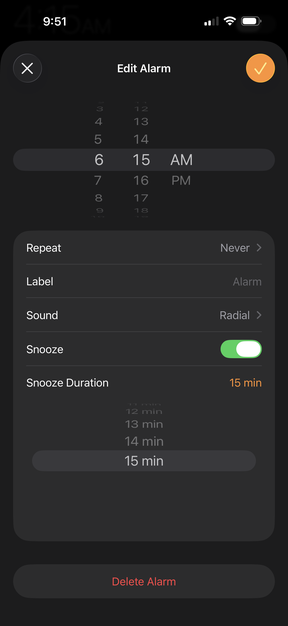
(Finally) change the alarm snooze time
Ever feel like that nine-minute snooze on your iPhone is a bit too specific? You’re right – it’s actually a throwback to mechanical clocks, when engineers couldn’t perfectly sync a 10-minute snooze with the clock’s gear teeth, and so they settled on nine minutes.
While digital tech fixed this analog problem years ago, Apple kept the tradition alive – until now.
With the latest iOS 26 update, you can finally ditch the history lesson and set a timer that actually fits your morning routine.
Open the Clock app, then tap on the Alarm you want to modify. Select “Snooze Duration” at the bottom of the screen and choose your preferred interval (anywhere from 1 to 15 minutes).
Advertisement 7
Article content
Search photos by keyword
Did you know it’s easy to name a person or pet in a photo or video on your iPhone? That way, going forward, you can simply search by keyboard to find who or what you’re looking for.
It goes well beyond this, in fact, but let’s first cover how naming people and pets works.
Go to the Photos app on your iPhone and open a photo or video. Now swipe up on the image to see the details. People or pets in the photo or video appear in the bottom-left corner. A question mark appears next to those you haven’t named. Tap the person or pet with a question mark next to their picture, then tap Edit Name and Photos.
It gets even better: in Photos, tap the search icon (magnifying glass icon) and type other keywords — and the AI will pull up relevant info. It could be a place (“beach” or “Italy”), date (“summer 2024”), or a description (“funny face,” “blue dress”) and so on.
You’re welcome!
– Marc Saltzman is the host of the Tech It Out podcast and is the author of the book, Apple Watch For Dummies (Wiley)
Article content






























 Bengali (BD) ·
  English (US) ·