.png)
 1 week ago
20
1 week ago
20
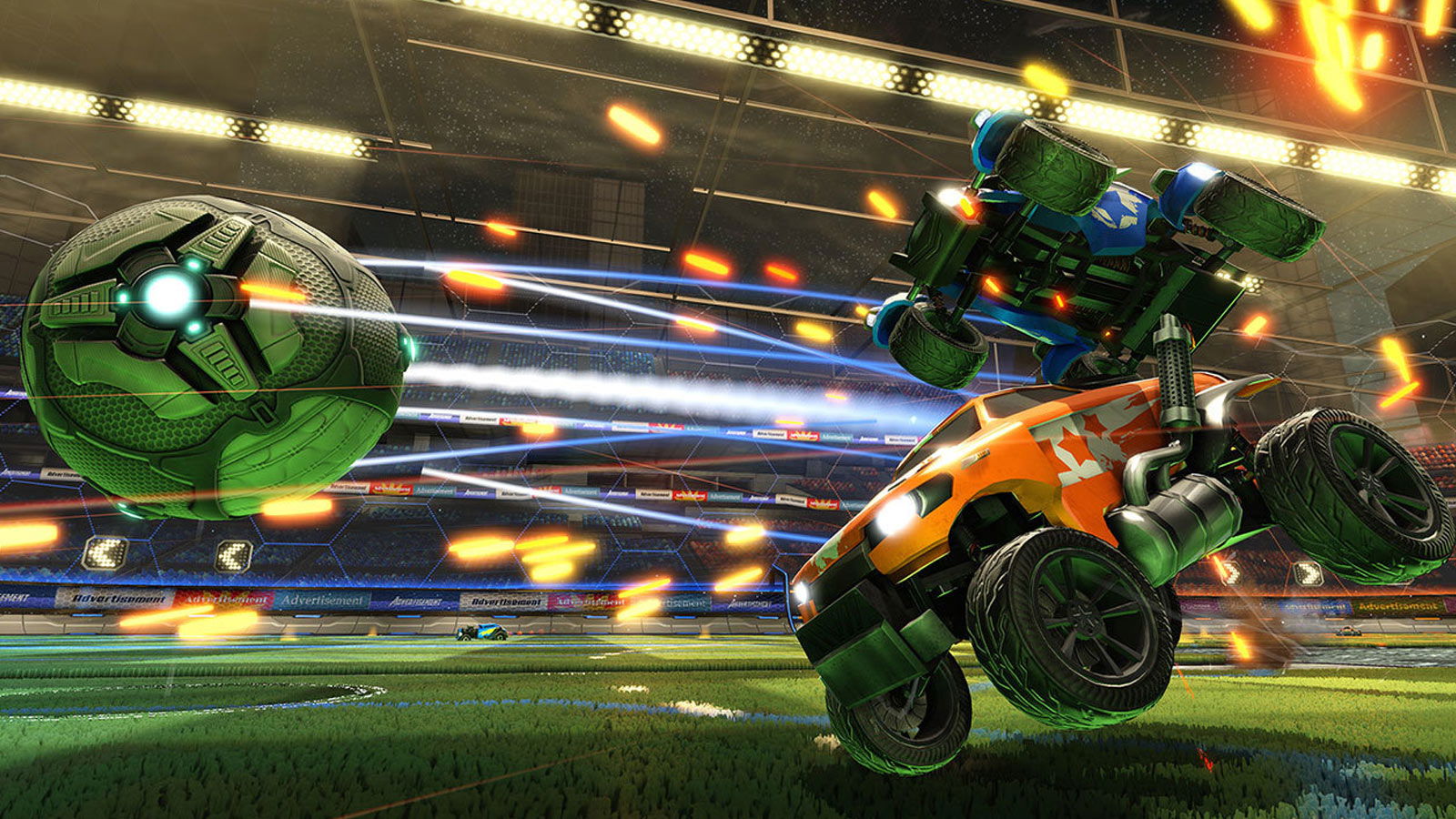
Rocket League is a game that runs on almost anything, but getting it to play nicely can be tricky, especially when it comes to dealing with input lag, awkward camera, and visual clutter – all the things that put you at a disadvantage.
The good news? A few smart tweaks can completely change how the game feels. No gimmicks, no overkill; just settings that actually help you see better, react faster, and play cleaner. Let’s fix what’s holding you back in Rocket League.
Rocket League Pro Camera & Control Setup
Credits: Psyonix
⛶
Credits: Psyonix
⛶
Credits: Psyonix
⛶
Credits: Psyonix
⛶
×
Credits: Psyonix
Credits: Psyonix
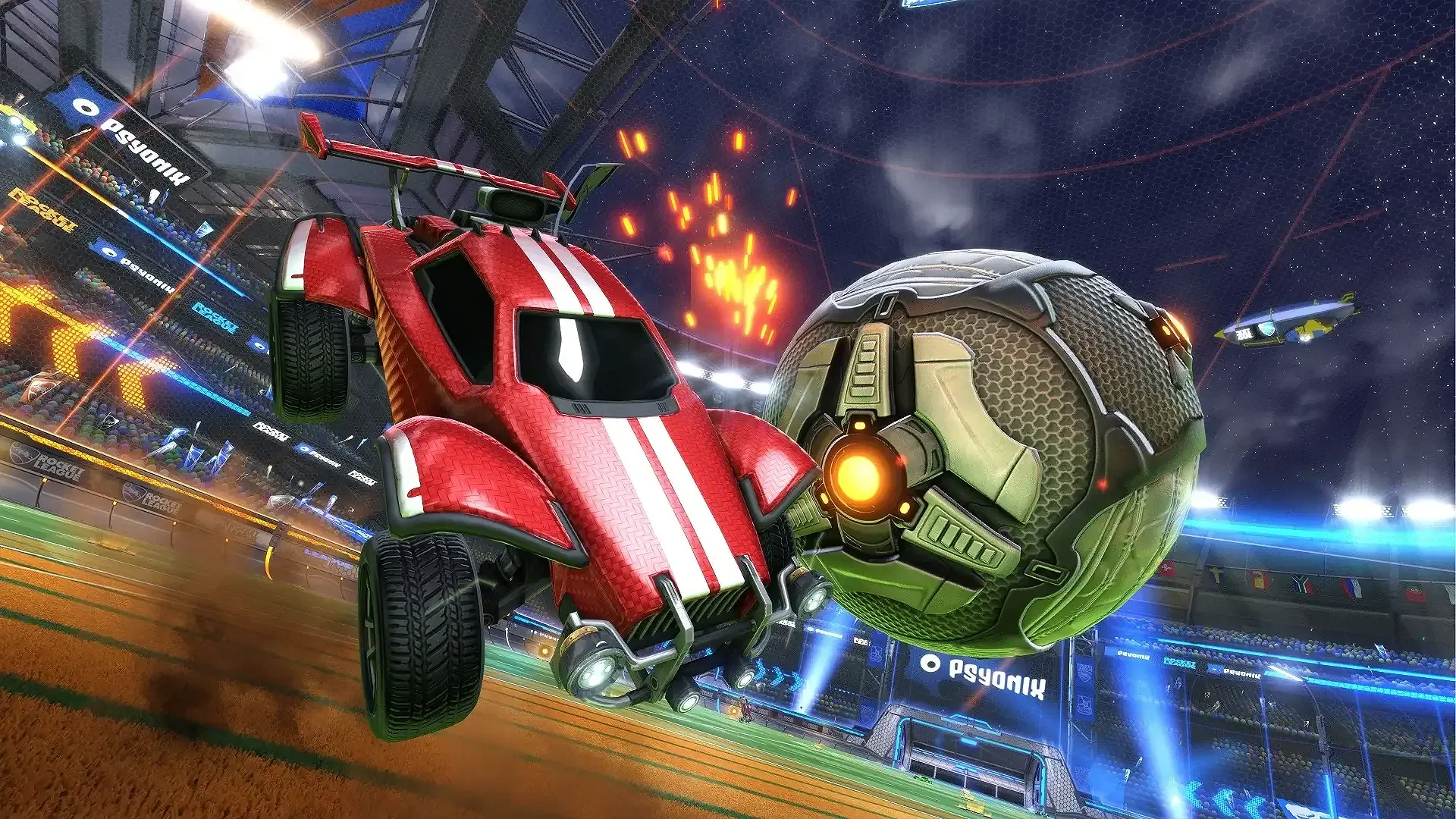
Credits: Psyonix
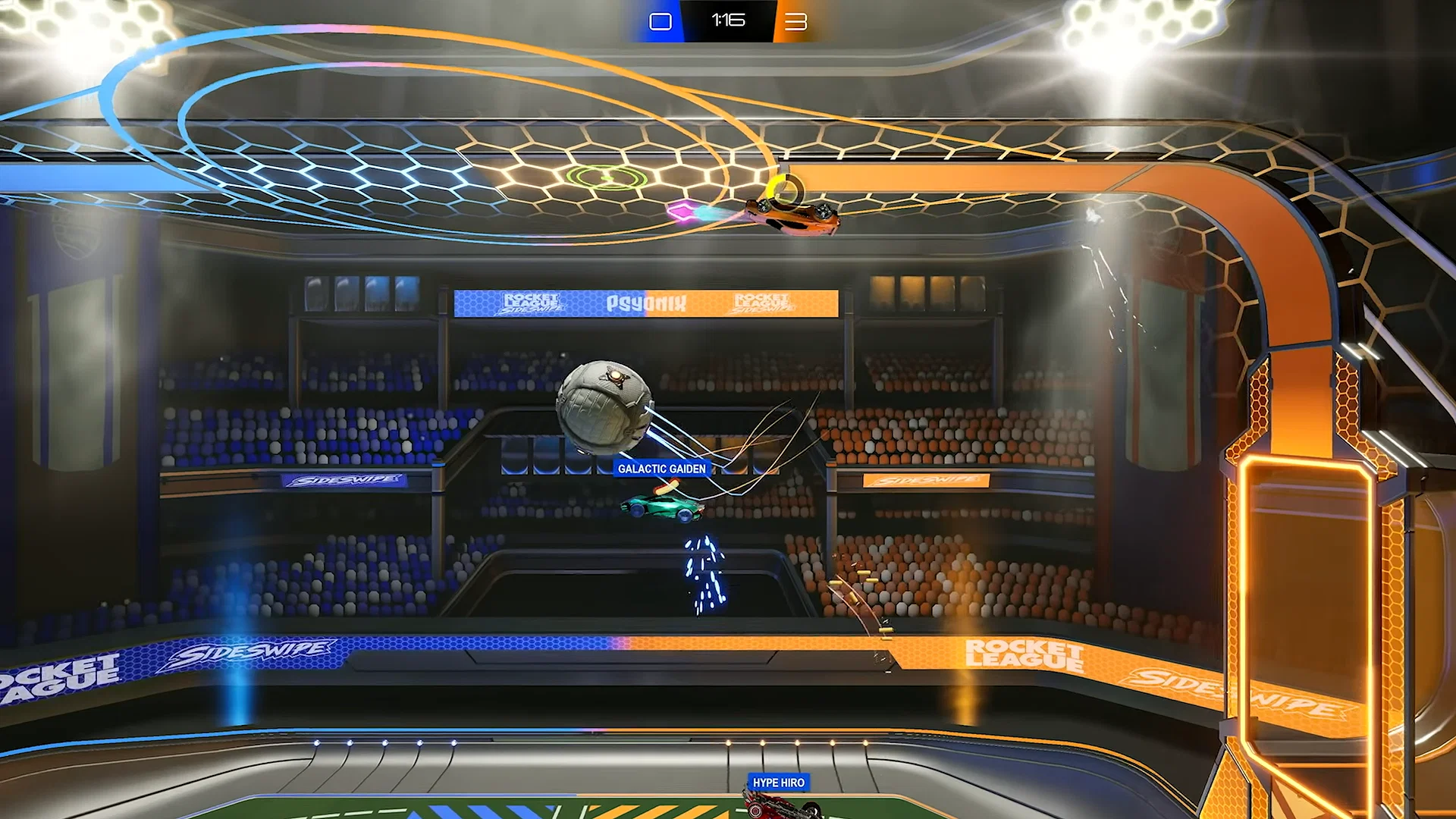
Credits: Psyonix
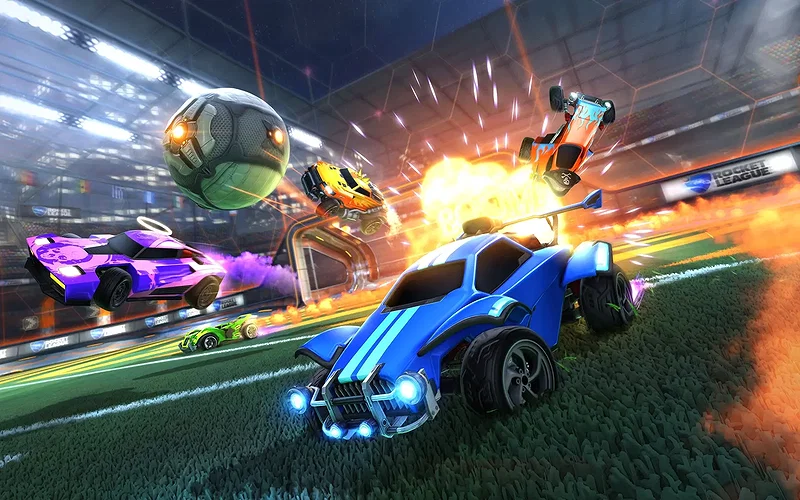
These Rocket League settings directly affect how you see the field and control your car. It might seem like a simple thing that won’t affect your gameplay, but it does. And this is where most players go wrong: a bad camera leads to bad decisions.
Camera Settings:
| Camera Shake | Off |
| Field of View (FOV) | 110 |
| Distance | 270 |
| Height | 90 |
| Angle | -4 to -5 |
| Stiffness | ~35 (30–60 range) |
| Swivel Speed | 7 |
| Transition Speed | 1.2 to 1.8 |
Camera settings plays a important role when it comes to the ball and your positioning awareness. So, always try to keep things clear.
Control Settings:
| Steering Sensitivity | ~1.58 (1.3–1.6) |
| Controller Vibration | Default |
| Controller Deadzone | 0.07 |
| Dodge Deadzone | 0.8 |
| Keyboard Aerial Safety | On |
Keybinds are entirely personal preference. And if you’re on a mouse and keyboard, your sensitivity will depend on your DPI… so tweak both until they feel comfortable and consistent for you.
Boosting Performance: Video, Interface & Audio Settings
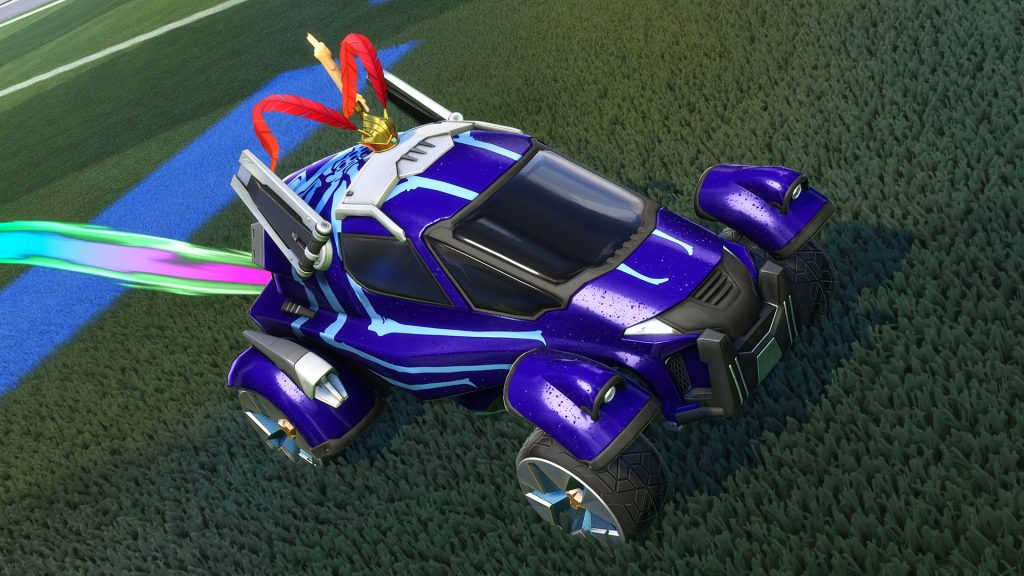 More FPS, fewer excuses. | Credits: Psyonix
Once your controls feel right and you are getting a better view of the arena, the next step is removing distractions and squeezing out as many frames as possible.
Gameplay Settings:
| Show Competitive Divisions | On |
| Force Default Team Colors | On |
| Game Stat Display Level | Main Stats Only |
| Flip Reset Indicator | On |
There are a few more settings in the menu, but keep them on the default. But if you prefer to change them like Crossplay play settings, you definitely can.
Video Settings:
| Resolution | Native (e.g., 1920×1080) |
| Display Mode | Borderless or Fullscreen |
| VSync | Off |
| Anti-Aliasing | Off |
| FPS Cap | 1 below refresh rate (if monitor is 240Hz, go 239) |
Turning off VSync and capping FPS properly reduces input lag and stuttering.
Advanced Video Settings:
| Texture Detail | High Performance |
| World Detail | Performance |
| Particle Detail | Performance |
| Effect Intensity | Default |
| High Quality Shaders | On |
| Dynamic Shadows | On |
| Extra Effects | Off |
Lowering unnecessary visuals boosts FPS while keeping important visual cues.
Interface Settings:
| Interface Scale | Max |
| Nameplate Scale | 200% |
| Ball Arrow | On |
| Ball Cam Indicator | Optional |
Larger UI and nameplates improve awareness, especially in fast plays. Overall, Rocket League isn’t just about raw FPS; it’s about clarity, consistency, and control. Even though these tweaks won’t instantly make you better, they’ll remove everything holding you back.
Which settings have made the biggest difference in your gameplay? Comment below to let us know.

















 Bengali (BD) ·
  English (US) ·