.png)
 1 week ago
12
1 week ago
12
 Credit: Capcom
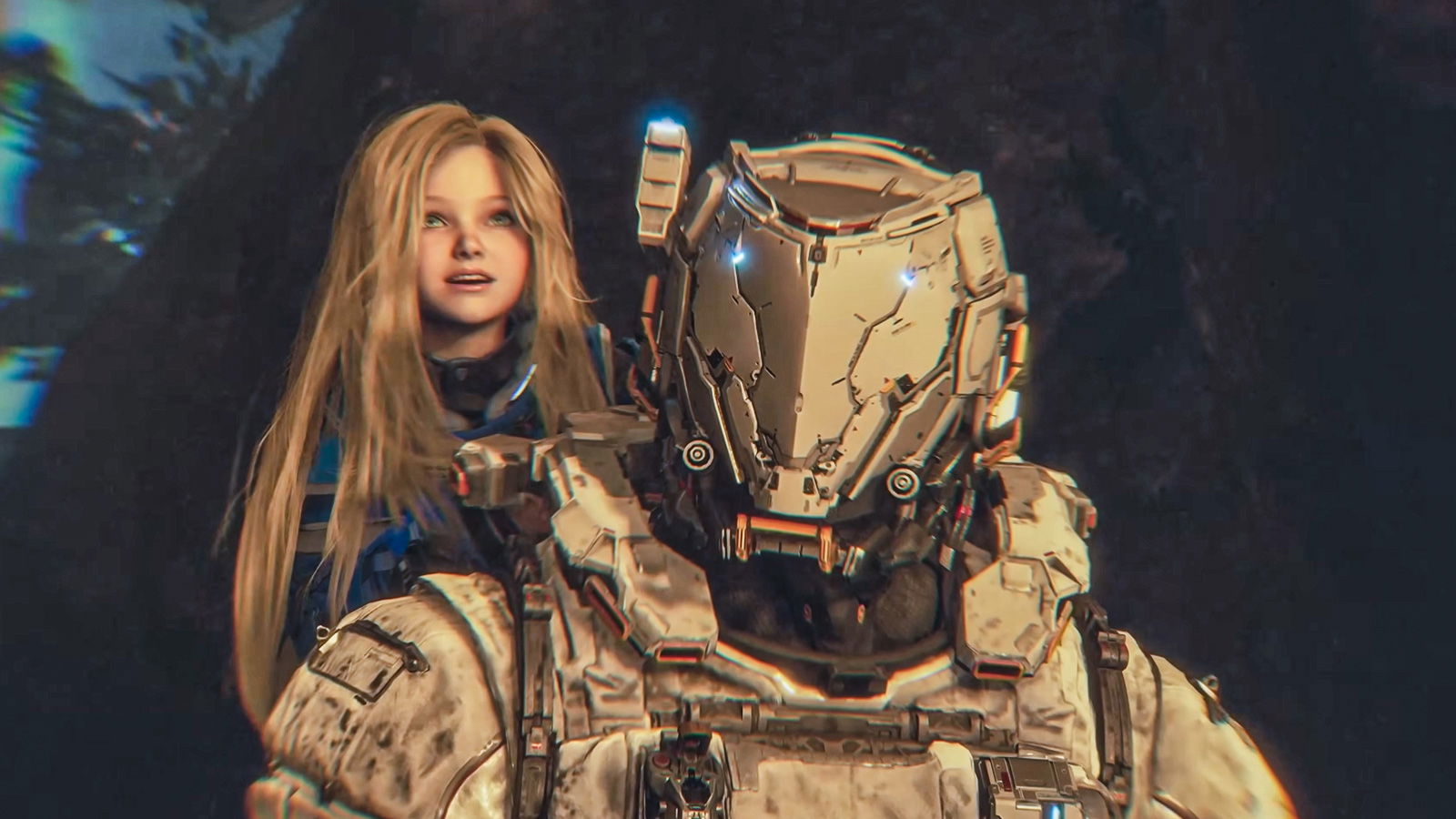
Pragmata is finally dropping on PC after years of waiting. The game’s demo has proved that Capcom‘s RE Engine is incredibly well-optimized out of the gate.
The game runs easily on many hardware configurations. However, its detailed sci-fi environments and intense combat can cause frame drops when graphics settings are not balanced.
This is where we come in! We will help you optimize your system not only with in-game settings but also Windows tweaks, so that you get the best experience.
Best Pragmata Video and Graphics Settings for PC
Credit: Capcom
⛶
Credit: Capcom
⛶
Credit: Capcom
⛶
×
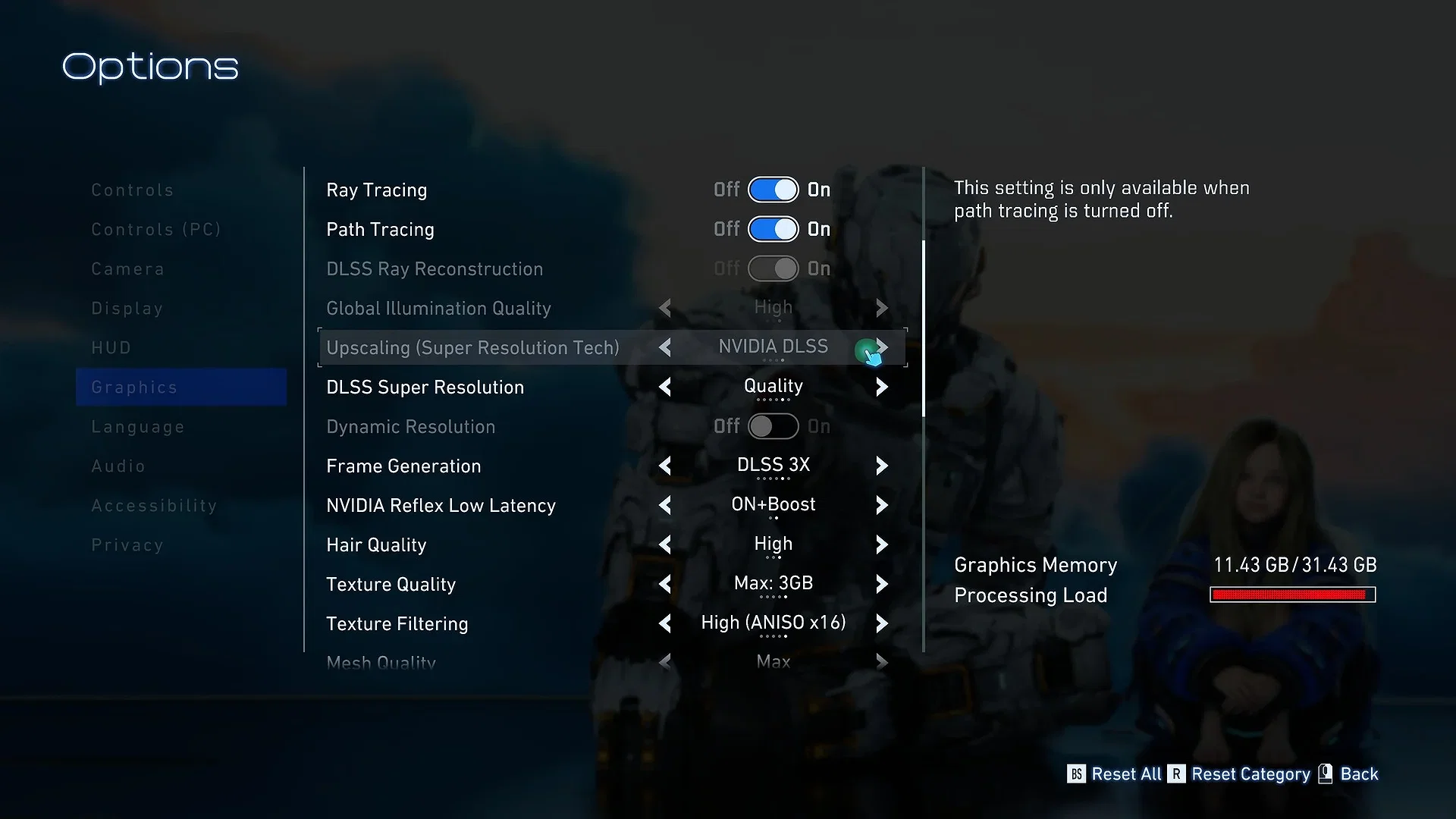
Credit: Capcom
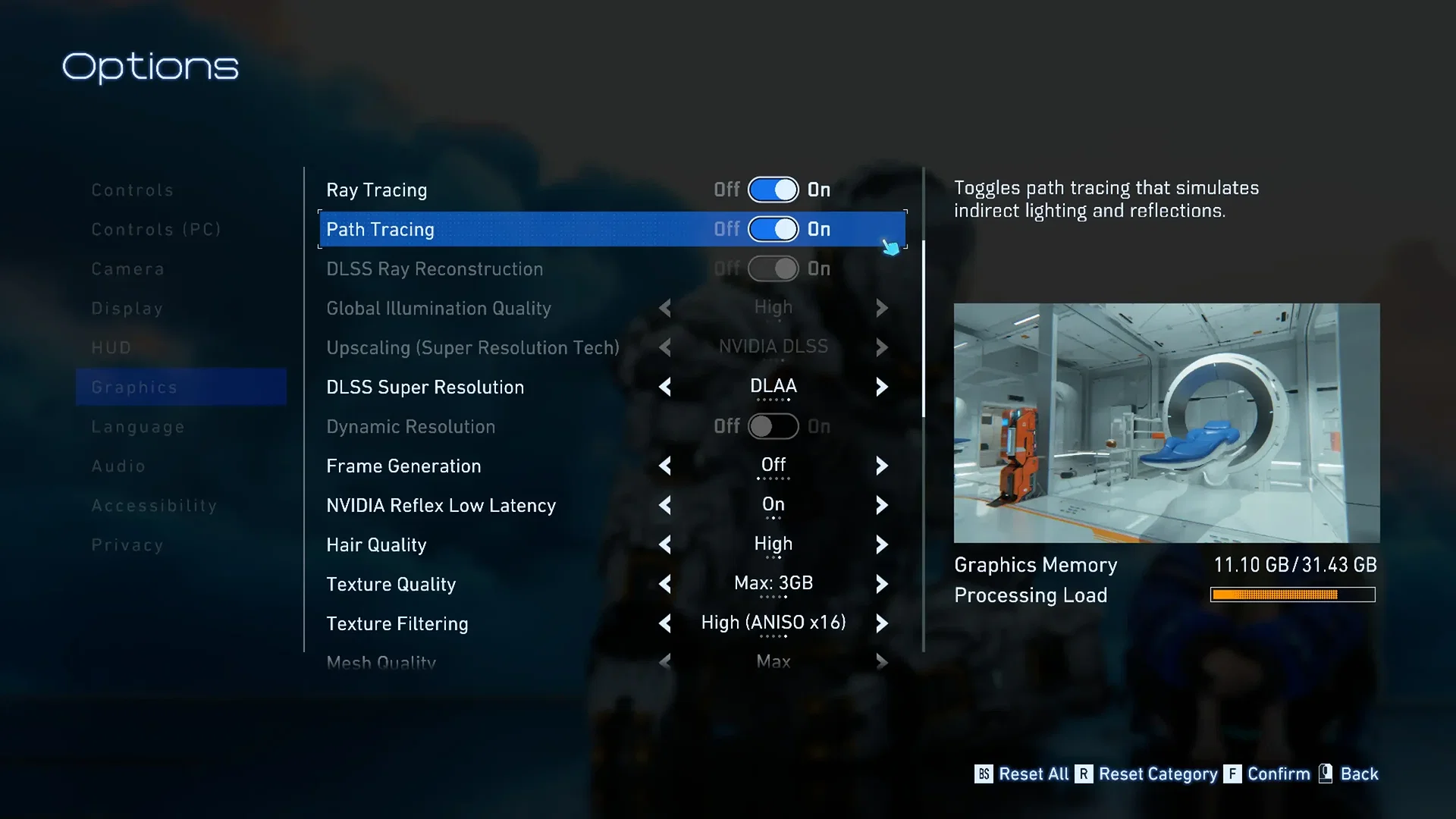
Credit: Capcom
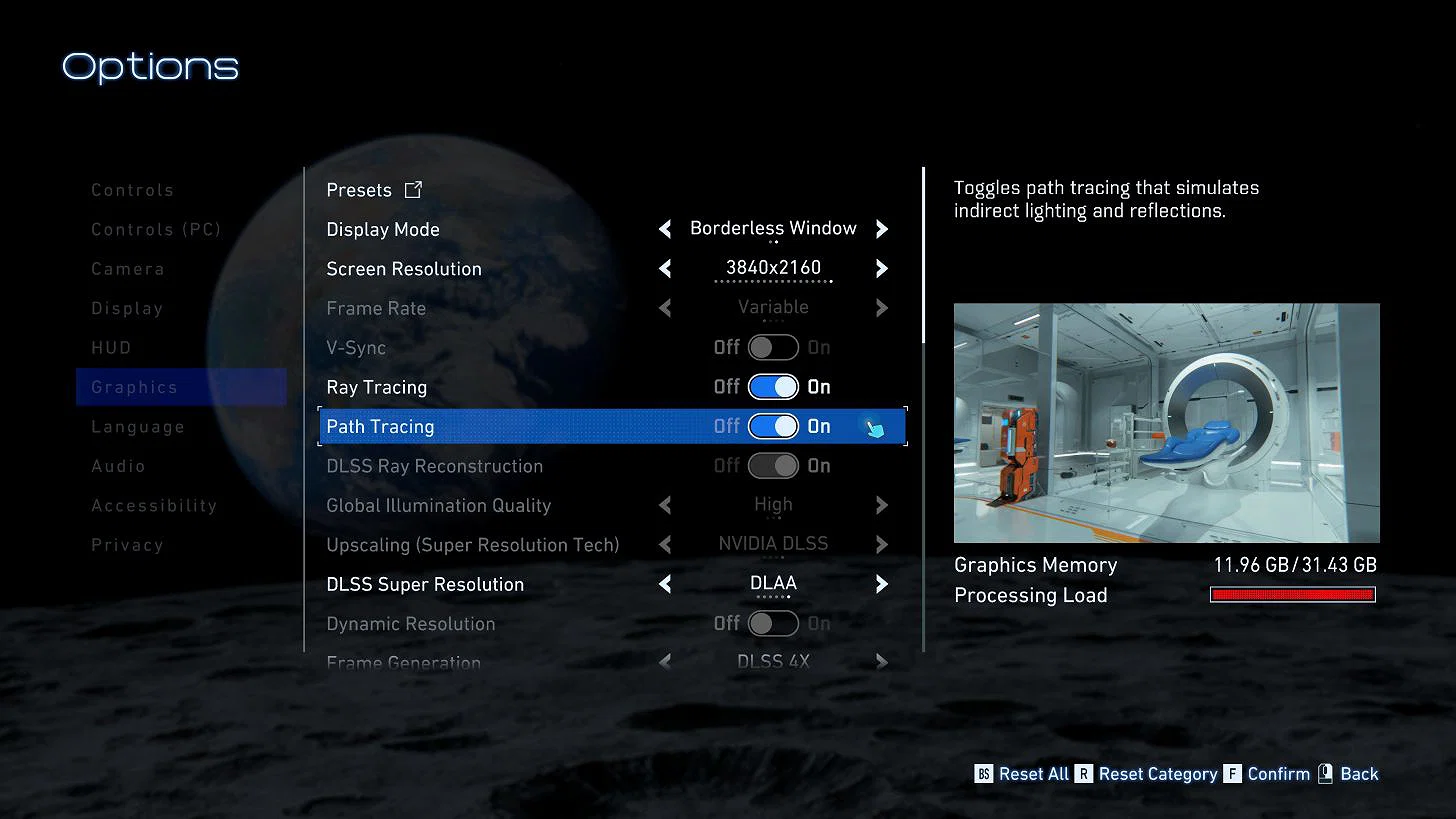
Credit: Capcom
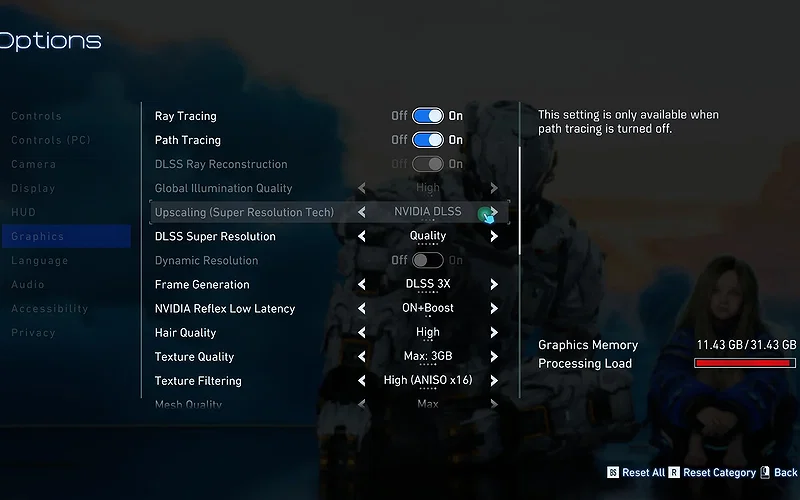
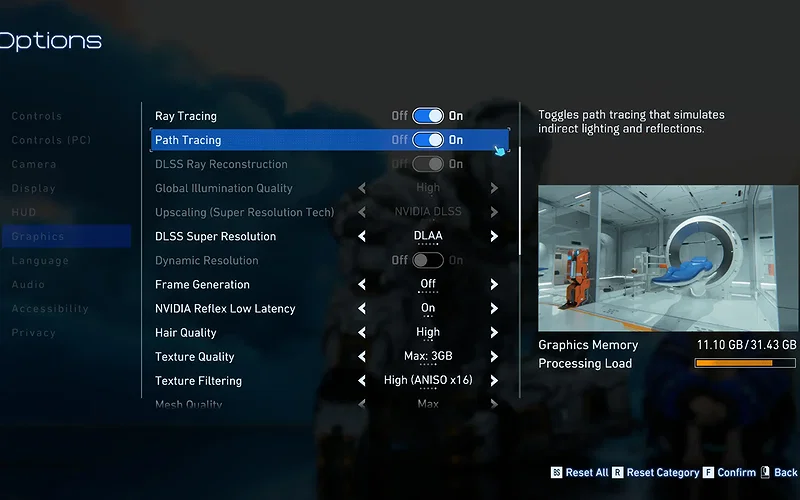
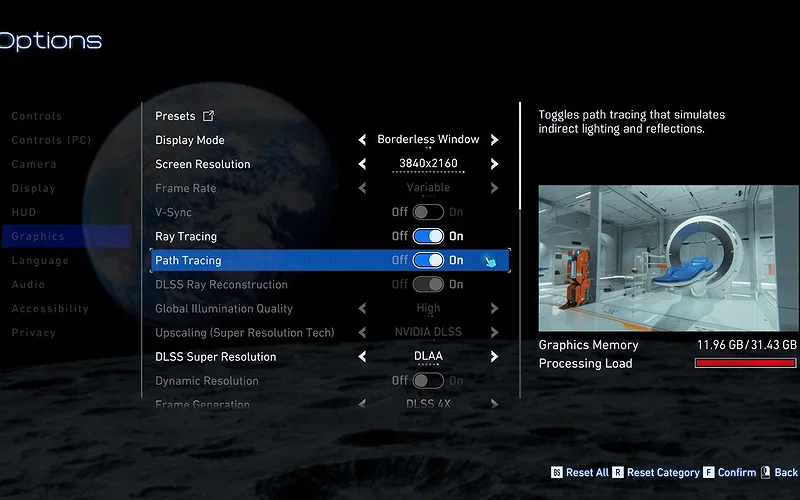
To get the absolute most out of your hardware, focus on lowering the most taxing graphical settings while using upscaling technology to maintain visual clarity. Additionally, we will focus on features that directly impact the game’s performance.
Display & Upscaling Settings
| Display Mode | Fullscreen |
| Resolution | Native Monitor Resolution |
| Image Quality | 100% |
| Upscaling (FSR / DLSS) | Balanced or Quality |
| V-Sync | Off |
| Frame Rate | Unlocked |
Always run the game in Fullscreen mode to prevent Windows from interfering with the rendering pipeline. If you have an RTX 40-series card or newer, Frame Generation is highly recommended for a massive FPS boost.
Advanced Graphics Quality
| Ray Tracing | Off (Unless using an RTX 4070 or higher GPU) |
| Anti-Aliasing | FXAA+TAA |
| Hair Quality | Medium (High if you have a capable CPU) |
| Texture Quality | High – 2GB (For GPUs with 8GB or less VRAM) |
| Texture Filtering | High |
| Mesh Quality | Medium/High |
| Shadow Quality | Medium |
| Shadow Cache | On |
| Contact Shadows | Off for CPU-limited machines, any otherwise |
| Ambient Occlusion | SSAO (Turn off for a performance boost on weaker machines) |
| Volumetric Lighting | Low |
| Effects Quality | Medium/High |
| Bloom | Off |
| Subsurface Scattering | Off for CPU-limited machines, On otherwise |
This is where you will claw back the most performance! Heavy features like Ray Tracing and Volumetric Quality cost massive amounts of processing power. You will need to turn them down or off for a more fluid gameplay experience.
Windows Optimizations That Can Further Improve Performance
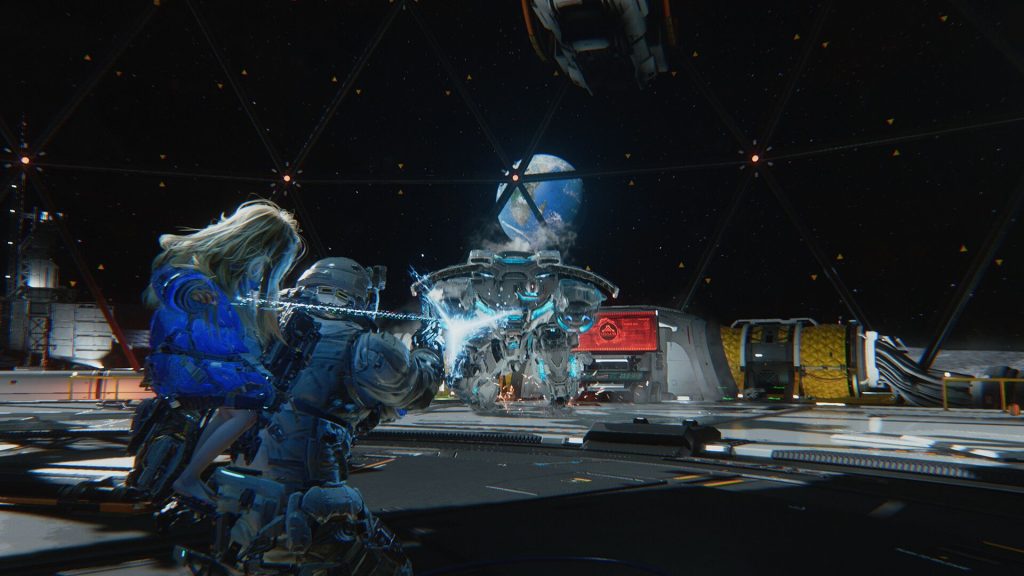 Experience Pragmata at another level | Credit: Capcom
Even with the best in-game settings enabled in the RE Engine, Windows background processes can still steal vital resources. These introduce those frustrating micro-stutters during combat. You need to make your OS understand that Pragmata is the priority!
- Search Game Mode in the Start menu and make sure it’s enabled. This prevents background updates and allocates more resources to your game.
- Search for Xbox Game Bar and disable it. This program is known to consume unnecessary RAM and negatively impact performance in heavily demanding AAA titles.
- Avoid running overlays from multiple applications simultaneously.
- Navigate to your Windows graphics settings and turn on Hardware-Accelerated GPU Scheduling (HAGS). This is a critical step, especially if you plan to use NVIDIA’s Frame Generation technology, as it reduces latency and improves overall performance.
- Disable Fullscreen Optimizations for the game application itself from the Pragmata executable file. This simple tweak prevents the Windows Desktop Window Manager (DWM) from interfering with the game’s rendering.
Investing a few minutes before you start playing Pragmata on your PC will pay high dividends in the form of smoother gameplay. It will allow you to enjoy the game’s brilliant story, awesome voice acting, and incredible action in peace.
Do you think Pragmata will live up to its hype or fall flat in front of the behemoth that is Crimson Desert? Let us know your thoughts in the comments.





















 Bengali (BD) ·
  English (US) ·